Creative projects
How to Make Stickers from a Photo on Android
The short answer
To make a sticker from a photo on Android, cut the subject out of its background with an app like Cutout, refine the edges so no background pixels remain, and export as a transparent PNG. That PNG is your sticker — you can send it directly in apps that support image messages, drop it into a design tool, or import it into a dedicated sticker-maker app to build a pack for platforms like WhatsApp or Telegram.
What actually makes a good sticker
A sticker isn't a special file type — it's a photo with two things a normal photo doesn't have: a subject cut cleanly away from its background, and transparency everywhere else. That's it. The playful chat-app stickers with a white outline are just a transparent cutout with a border effect added on top.
Which means the hard part of making a sticker is the same hard part as any cutout: getting the edges right. A sticker gets viewed small and often animated into a chat thread, so stray background pixels or a chopped-off ear are far more visible than they would be in a full photo.
Turn a photo into a sticker in Cutout
Here's the full workflow in Cutout, from gallery photo to sticker-ready PNG:
Choose your photo
Open Cutout and pick a photo with a clear subject — a person, pet, product or object. No account is needed to start editing.
Let the AI create the cutout
On-device AI detects the subject and removes the background automatically in seconds, right on your phone.
Refine the edges closely
Zoom in and check the outline carefully — this matters more for stickers than for almost anything else. Use the Keep brush to restore missed details and the Erase brush to remove background fragments, adjusting brush size for fine areas like whiskers or fingers.
Keep the background transparent
Leave the background set to transparent so the sticker has no rectangle around it once placed on a chat bubble or design.
Export your PNG
Export the finished cutout. It saves as a high-quality transparent PNG to Pictures/Cutout, ready to send or reuse.
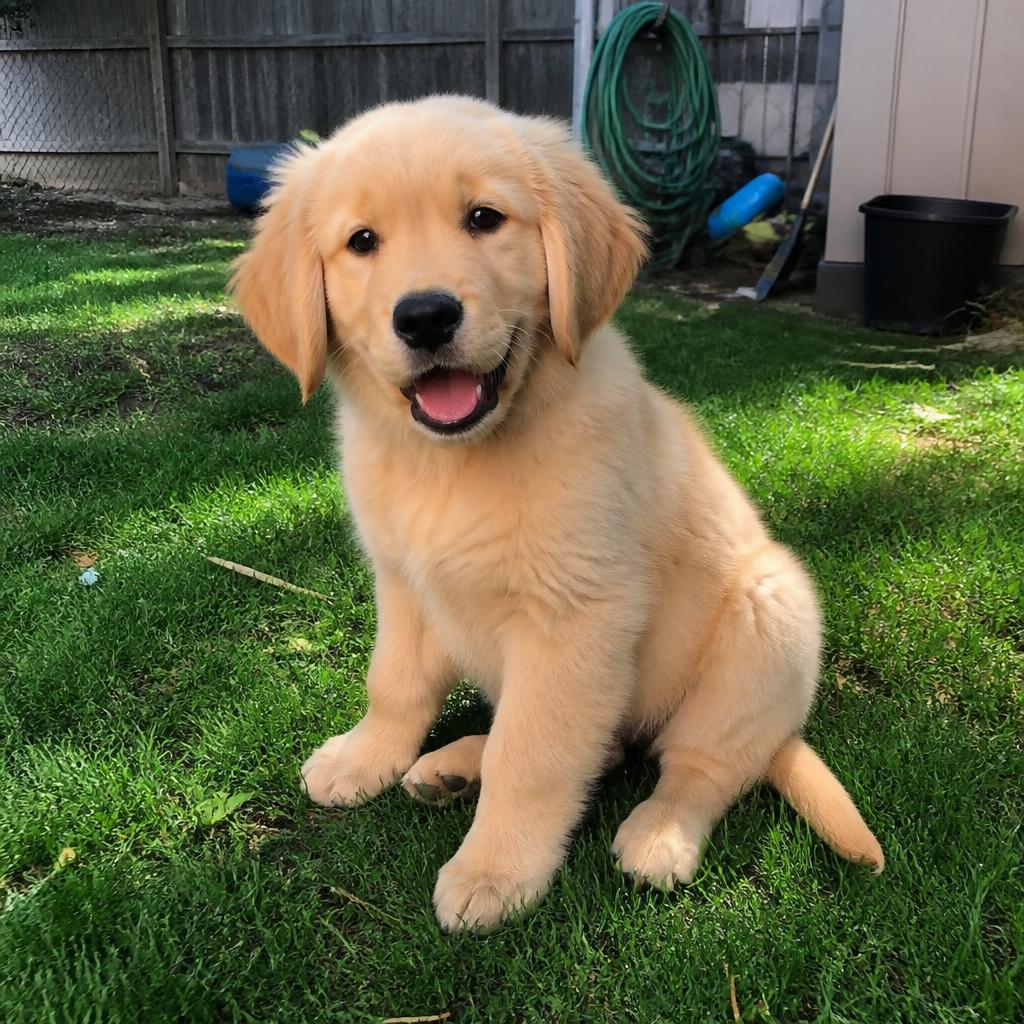
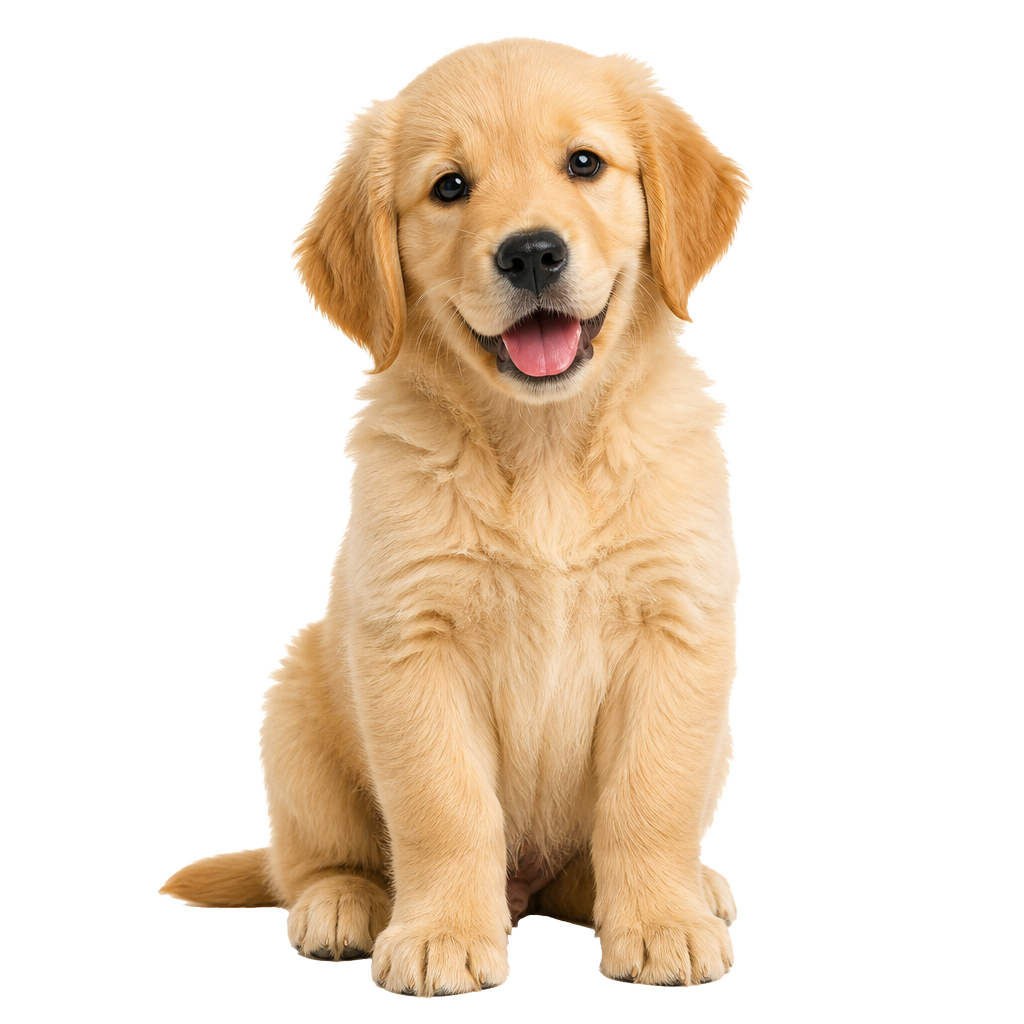
Adding the white outline you see on sticker packs
The bold white border around most chat-app stickers is called a keyline, and it exists for a practical reason: it keeps the sticker readable against any chat background, light or dark. Cutout's editor is focused on getting the cutout itself right — the subject detection, edge refinement and transparent export — rather than adding decorative borders.
Once you have a clean transparent PNG from Cutout, a dedicated sticker-maker app (there are several free ones built specifically for WhatsApp and Telegram packs) can add the keyline, resize to the platform's required dimensions, and bundle multiple stickers into a pack. Think of Cutout as producing the raw material — the hard part — and the sticker-maker app as the finishing step.
Where to actually use your sticker
- iMessage, Signal, Telegram — most messaging apps let you attach a PNG directly; a transparent cutout sends and displays just like a native sticker.
- WhatsApp sticker packs — import your transparent PNG into a sticker-maker app to add a keyline and publish it as part of a pack.
- Instagram Stories — add your cutout as an image sticker and resize or rotate it freely over any background.
- Discord and Slack — custom emoji and stickers both start from a transparent PNG; check each platform's size limit before uploading.
- Notebooks, planners, print — transparent PNGs print cleanly onto sticker paper without a visible background box.
Common mistakes that make stickers look amateur
Cutout keeps up to 24 recent uploads in private local storage, so it's easy to reopen a cutout and re-export it after checking it against a platform's requirements.
- Exporting as JPG. JPG can't store transparency, so the sticker arrives with a solid-colour box around it instead of floating cleanly.
- Skipping the zoom check. Ragged edges are invisible at thumbnail size in the editor and glaring once the sticker is placed in a chat.
- Leaving too much empty space. Crop close to the subject before exporting — extra transparent margin makes the sticker look small when it's actually placed at a fixed size.
- Ignoring platform size limits. WhatsApp and Telegram both enforce specific pixel dimensions and file-size caps for sticker packs — check the sticker-maker app's requirements before publishing.
Try it on your own photos — free.
Cutout removes backgrounds with on-device AI. No account, no upload, no watermark on your workflow.
Frequently asked questions
Can I publish a WhatsApp sticker pack directly from Cutout?
Not directly — Cutout creates the clean, transparent cutout, which is the essential first step. To publish an actual WhatsApp or Telegram sticker pack with a keyline border, import your exported PNG into a dedicated sticker-maker app.
Should a sticker have a transparent or white background?
Transparent. A transparent PNG lets the sticker sit naturally on any chat bubble or background colour. A solid white background will show as a visible white box once placed.
What image format do stickers need to be?
PNG. It's the standard format that supports transparency (an alpha channel), which is what makes a sticker look like a cutout rather than a rectangular photo.
Does my photo get uploaded anywhere to make a sticker?
No. Cutout processes the background removal on your device, so the photo isn't uploaded to a developer-operated server during the cutout step.
Is Cutout free to use for making stickers?
Yes. Cutout is free to download and the editor works without an account. The app contains advertising, which supports development.
Keep reading
How-to guide
How to Remove the Background from a Picture on Android
ReadSelling online
How to Get a White Background for Product Photos (With Just Your Phone)
ReadHow-to guide
How to Make a Transparent Background (PNG) on Your Phone
ReadHow-to guide
How to Blur a Photo's Background on Android (Portrait Mode Without a DSLR)
ReadBuyer's guide
How to Choose the Best Background Remover App for Android in 2026
ReadHow-to guide
How to Change Your Profile Picture Background on Android
Read