How-to guide
How to Change Your Profile Picture Background on Android
The short answer
To change a profile picture's background on Android, use a background remover app like Cutout to cut yourself out of the original photo, then choose a new background — a solid colour for a professional look, a blur to keep context, or a custom image. Export as a PNG, then upload it wherever your profile picture is set. Because most platforms crop profile pictures into a circle, keep your head and shoulders centred with margin around the edges before exporting.
Why your profile picture background matters
A profile picture is one of the smallest images you'll ever publish, and one of the most frequently seen. A cluttered background — a messy room, a busy street, a distracting pattern — competes with your face for attention at a size where there's no room for competition.
Different platforms call for different treatments. A plain, neutral background reads as professional on LinkedIn. A bold colour or fun scene fits the tone of WhatsApp or Instagram. The photo itself can often stay the same — it's the background that needs to change to fit the context.
Change any profile picture's background in Cutout
Pick your photo
Open Cutout and choose the photo you want to use — ideally one where your face and shoulders are clearly visible.
Let the AI cut you out
On-device AI detects you as the subject and removes the original background automatically.
Refine tricky areas
Zoom in around hair, glasses and shoulders — the details most likely to need a touch-up — and use the Keep and Erase brushes to fix them.
Choose a new background
Pick a solid colour for a clean, professional look, blur the original scene to keep some context, or drop in a custom image background.
Export and upload
Save the result as a PNG, then upload it as your profile picture wherever you need it.

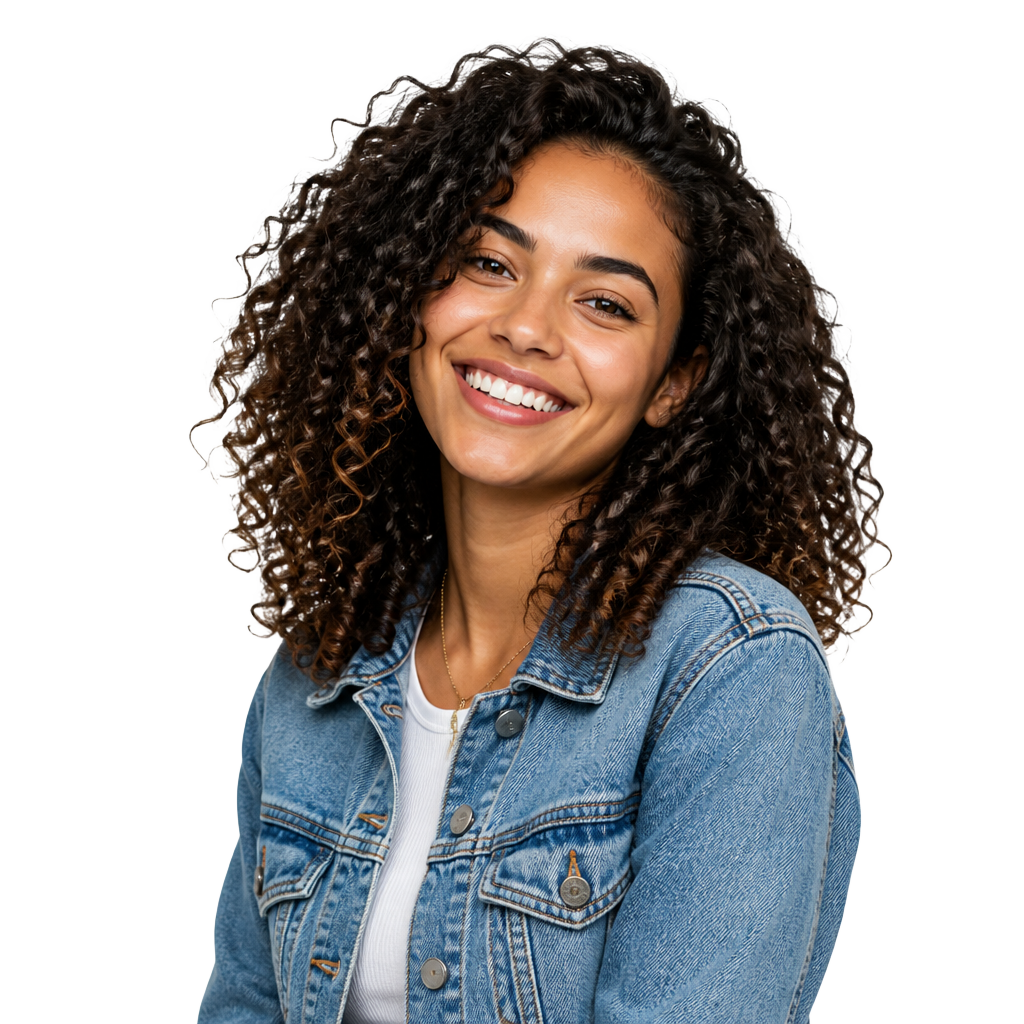
Choosing the right background for each platform
- LinkedIn — a solid neutral colour or a softly blurred office setting reads as professional and keeps the focus on your face.
- WhatsApp and Signal — transparent or a bold solid colour both work well; these platforms display avatars small, so simple wins.
- Instagram — more room for personality: bold colours or a custom scene that reflects your brand or mood.
- Resumes and professional directories — plain white or light grey is the safest, most universally accepted choice.
The circular-crop checklist
Almost every platform crops profile pictures into a circle, even though you upload a square or rectangular image. It's easy to forget this while editing and end up with an accidentally cropped head or shoulder in the final result.
- Keep the subject centred. A circular crop cuts equally from all sides — off-centre framing gets cut unevenly.
- Leave margin around the head and shoulders. Don't crop tight to the edges before exporting; the platform will crop further on its own.
- Avoid placing detail right at the edges. Anything close to the corners of your exported image is the first thing the circular crop removes.
- Preview before publishing. Most platforms show a crop preview during upload — use it to nudge the image into place rather than guessing.
Common mistakes to avoid
- Choosing a background that clashes with the app's own colours. A background close to the platform's UI colour can make your avatar blend in rather than stand out.
- Forgetting to zoom in on the edge. Stray pixels around hair or shoulders are far more visible at profile-picture size than in the full photo.
- Using a blur that's too subtle to notice. At small sizes, a light blur can look almost identical to the original background — a solid colour is often the safer, clearer choice.
Try it on your own photos — free.
Cutout removes backgrounds with on-device AI. No account, no upload, no watermark on your workflow.
Frequently asked questions
Can I make my LinkedIn profile picture background white without a studio?
Yes. Cut yourself out of any existing photo with an app like Cutout, then choose a solid white (or light neutral) background before exporting — no studio or backdrop required.
Will my profile picture look weird because of the circular crop?
Only if the subject is off-centre or cropped too tightly before export. Keep your head and shoulders centred with margin around the edges, and use the platform's crop preview before publishing.
Does Cutout upload my profile photo anywhere?
No. Background-removal processing happens on your device, so the photo is not uploaded to a developer-operated server during editing.
Can I use a coloured background instead of white?
Yes. Cutout offers transparent, solid colour (any shade, including white), blurred original, or a custom image background — pick whichever fits the platform.
Is it free to change a profile picture background in Cutout?
Yes. Cutout is free to download and the editor works without an account. The app contains advertising.
Keep reading
How-to guide
How to Remove the Background from a Picture on Android
ReadSelling online
How to Get a White Background for Product Photos (With Just Your Phone)
ReadHow-to guide
How to Make a Transparent Background (PNG) on Your Phone
ReadCreative projects
How to Make Stickers from a Photo on Android
ReadHow-to guide
How to Blur a Photo's Background on Android (Portrait Mode Without a DSLR)
ReadBuyer's guide
How to Choose the Best Background Remover App for Android in 2026
Read